Set Up Inventory Forecasting on Shopify in 5 Minutes
Most inventory forecasting tools are overkill for a small Shopify store. Dozens of settings to configure before you can even see a number. This guide shows you how to get up and running with Inventory Forecasting Hero in about 5 minutes — no complicated setup, no learning curve.
How the Forecast Works
Before you jump in, here’s the formula the app uses under the hood:
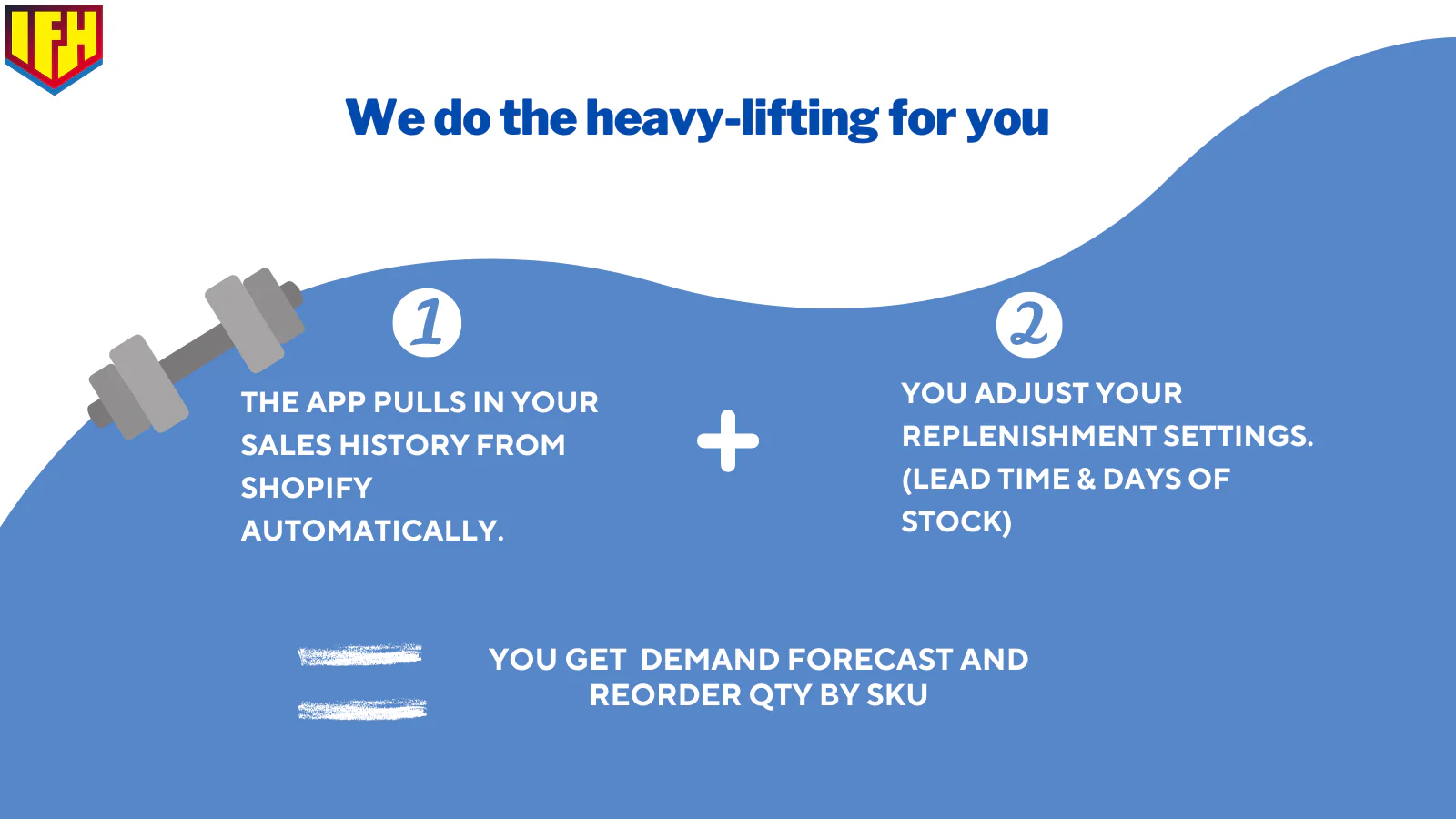
The app pulls your sales history from Shopify automatically. You set two numbers — your lead time and how many days of stock you want to keep. That’s all the app needs to tell you what to reorder and how much.
Step 1: Install the App
Install Inventory Forecasting Hero from the Shopify App Store
Once installed, the app connects to your Shopify store and pulls in your sales history automatically. Nothing to configure at this stage.
Step 2: Set Your Lead Time and Days of Stock

These are the only two numbers you need to set:
Lead Time is the number of days it takes for your supplier to ship the reordered stock to your warehouse after you place an order. If your supplier takes about two weeks, set this to 14. Be realistic here — pad it slightly if your supplier occasionally runs late.
Days of Stock is how many days of stock you want to keep on hand at any given time. Think of it as your target buffer. The reorder quantity the app suggests will always be enough to cover your Days of Stock setting.
One thing worth knowing: if you want a safety stock buffer for unexpected demand spikes or supplier delays, don’t add a separate safety stock setting. Just add those extra days directly to your Days of Stock number. So if you want 30 days of stock plus a 7-day buffer, set it to 37.
Step 3: Choose Your Sales Timeframe
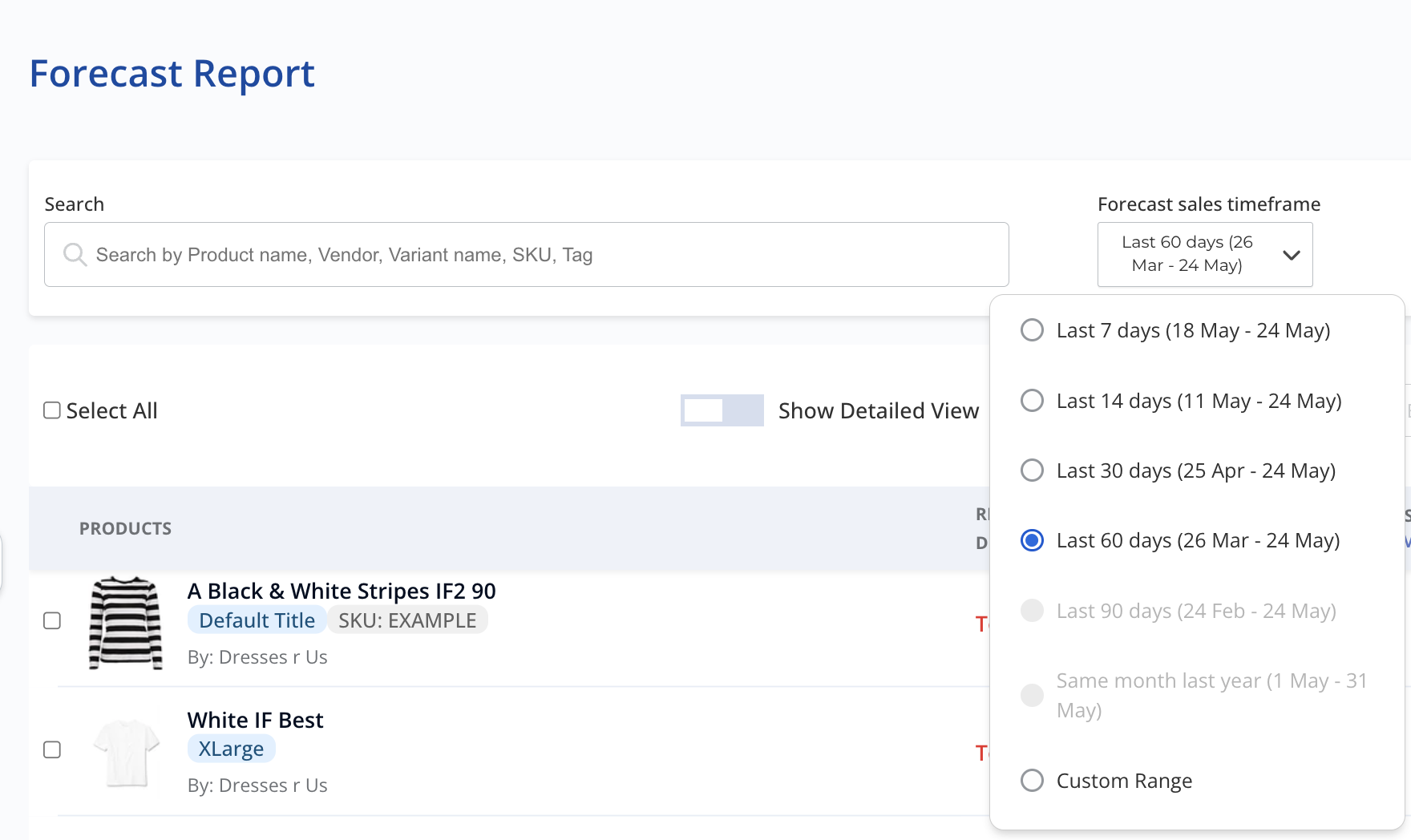
The sales timeframe tells the app which period of past sales to use when calculating your daily sales average. That daily average is how the app figures out how fast your inventory is depleting.
The options are Last 7, 14, 30, 60, and 90 days — plus Same Month Last Year and a Custom Range if you need it.
How to pick the right one:
- If your demand is steady and predictable, use Last 30 days. It’s the most straightforward — recent enough to be accurate, long enough to smooth out the odd quiet day.
- If your demand has been variable recently and you want to smooth it out, use Last 90 days. A longer window averages out the peaks and troughs.
- Avoid short windows like Last 7 or 14 days unless you have a specific reason — a slow week or a flash sale can throw off your daily average significantly.
The general rule: pick the timeframe that best matches the demand pattern you expect going forward.
Step 4: Check Your Reorder Quantity and Deadline
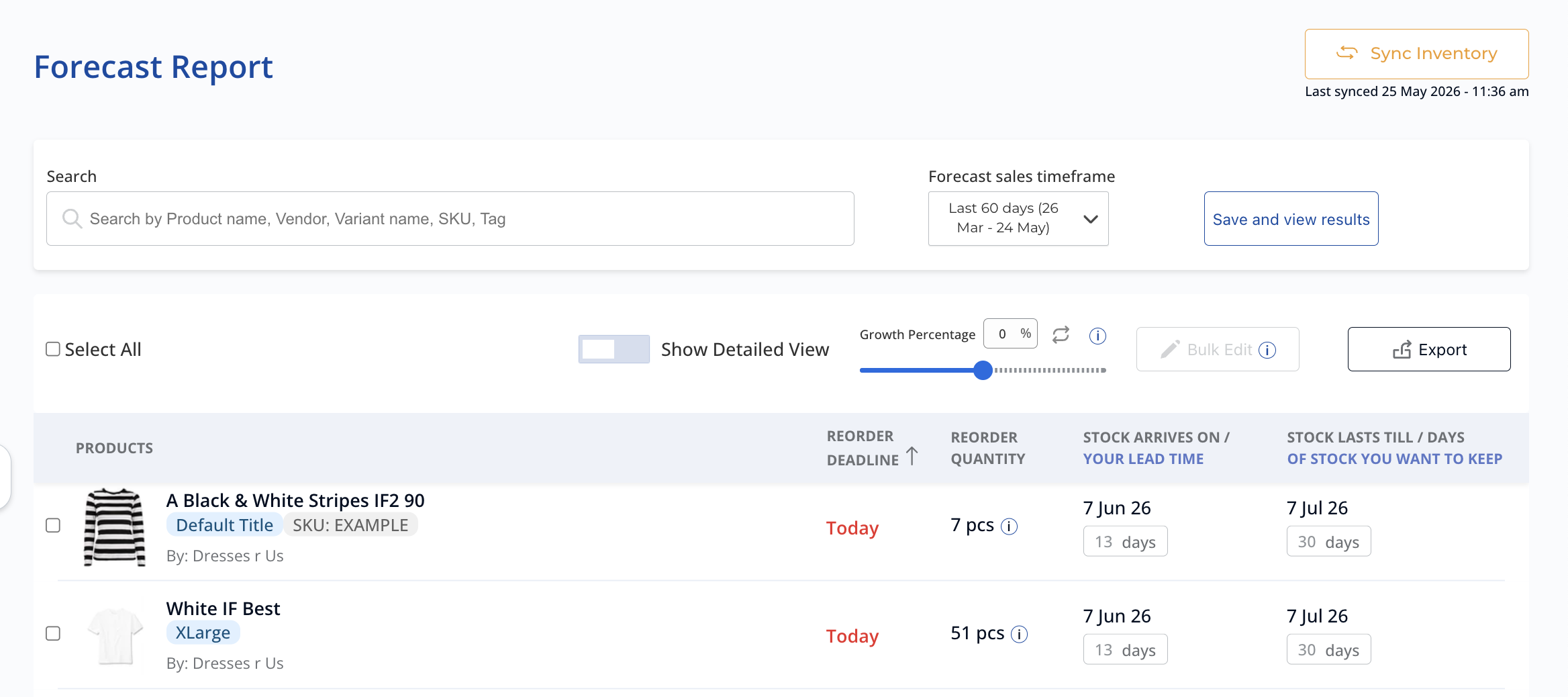
Once you’ve set your timeframe and saved your settings, the Forecast Report shows you two things for every SKU:
Reorder Deadline tells you how many days you have left before you need to place an order. It factors in your current stock levels and your lead time. If it says “Today” in red, you’re already cutting it close.
Reorder Quantity is how many units to order if you were to place a purchase order right now. It takes into account your current stock, any incoming inventory already on its way (pulled directly from Shopify Purchase Orders), your daily sales average, and your Days of Stock setting.
The incoming inventory part is worth calling out. If you’ve already placed a purchase order — whether through IFH or any other app that pushes PO data to Shopify — the app already knows about it. So it won’t tell you to order stock you’ve already ordered.
Want to double-check the calculation? Click the info icon next to the reorder quantity for any product.
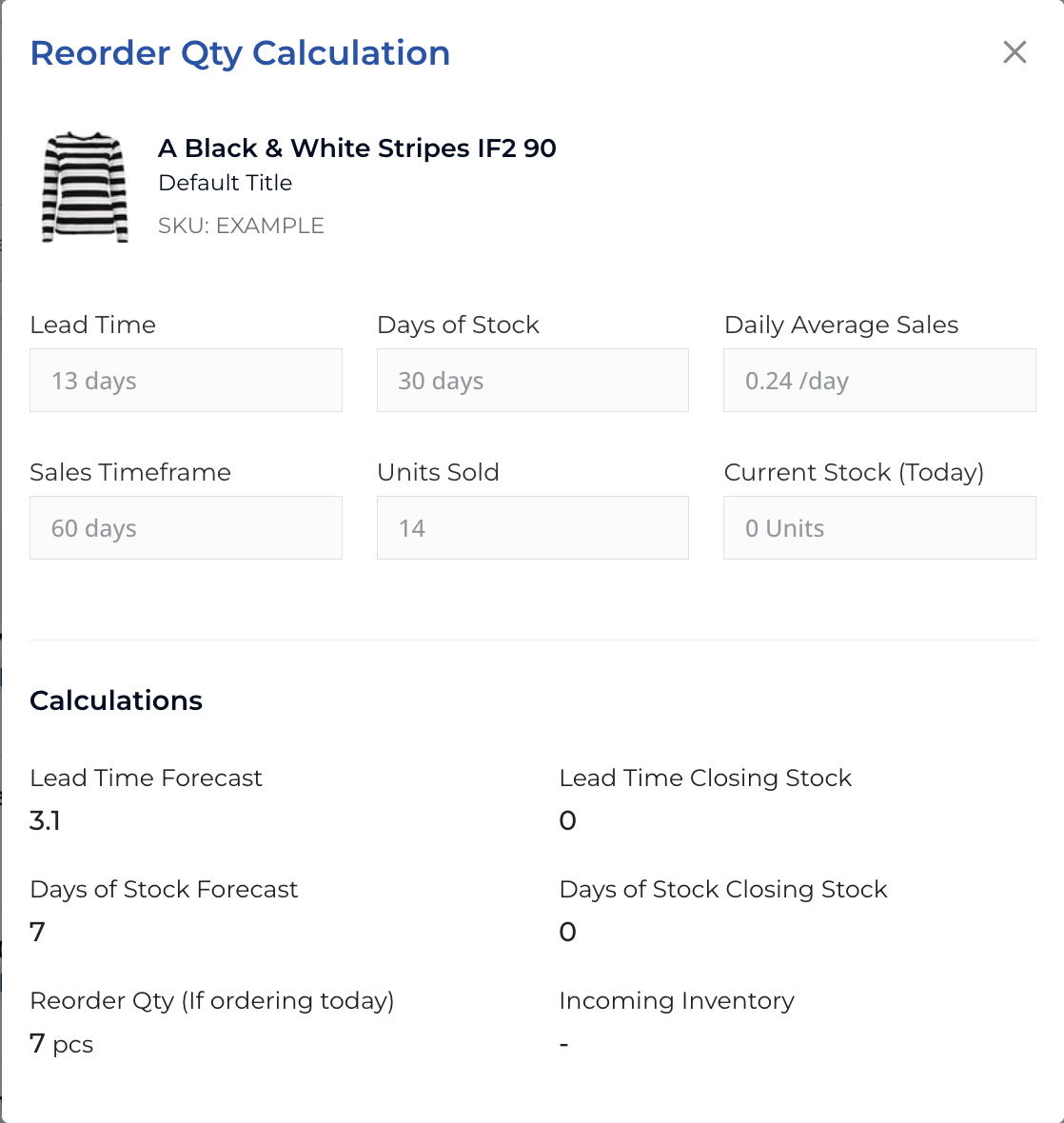
This opens up the full breakdown — lead time, days of stock, daily average sales, units sold in the timeframe, current stock, and exactly how the reorder quantity was calculated. Useful if a number looks off and you want to understand why.
Step 5: Create a Purchase Order
Select the products you want to reorder. You can select them individually or use Select All for a bulk order.
Export as CSV if you prefer to send a spreadsheet to your supplier. The export is Excel-friendly so you can make any adjustments before forwarding it.
That’s it. Five steps, five minutes, and your store is forecasting.
The app will keep syncing your latest sales data from Shopify so the numbers stay current. Check in regularly — once a week is enough for most stores — see what’s flagged, place your orders, and move on.
If you run into anything or want the app set up to match your specific workflow, reach out to the team. They’ll work with you to get it right.
Inventory Forecasting Hero does this automatically for your Shopify store. $25/month with a 30-day free trial.
Start Free Trial →